

Change or Add Links To Special Collections Drop-Down Menus
- To change or add a link to the Special Collections
drop-down menus, you must edit two templates: one
template controls the drop-down menus for XML finding aids, and one controls the drop-down
menus for all other pages on the website that have them.
- To edit the drop-down menus for web pages other
than XML finding aids, open
Frontpage, browse to the "stylesheets" folder, and open
"main.dwt".
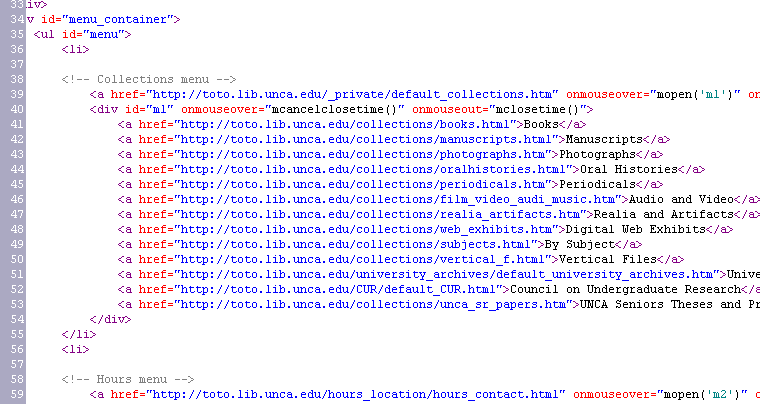
- The drop-down menu links will not show up in
"Design" view. Select "Code" view to view and edit the
links. Each drop-down menu (e.g. "Collections", "Hours",
etc.) is labeled with an HTML comment appearing in gray
text. Find the menu you wish to edit.
- Recommended practice is to copy an existing link,
paste it into the list at the position you want the new
link to appear, then edit the url and display text.
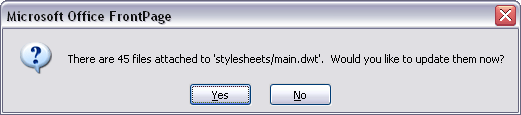
- When you save "main.dwt", you will be prompted to
update web pages attached to the template. Click Yes.
- Next, edit the drop-down menus for XML finding aids.
In the "stylesheets" folder, open "banner.xsl".
- Find the relevant menu and add or edit the link
using the method described above. (You will not be
prompted and will not need to update attached pages.)
- Warning: Unlike HTML pages
which will usually display in spite of coding errors,
XML and XSL files are unforgiving. A single coding error
will cause the page not to display in the browser.
Recommended practice is to save a temporary
backup of banner.xsl until you have verified that the
edited page is displaying properly in the browser.