

Exporting a Collection Record from Microsoft Access
Export as Webpage
A collection record in Microsoft Access can be exported as an XML file to generate a finding aid automatically.
In the Collections form in Microsoft Access, open the collection you wish to export and click on the "Export as Webpage" button.
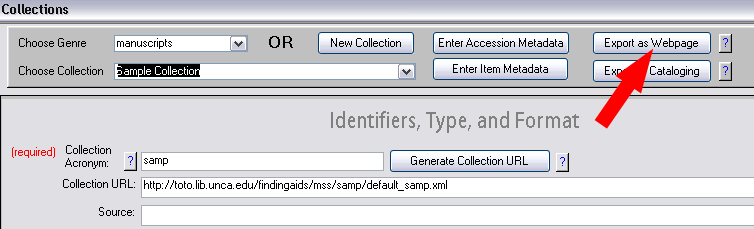
-
The collection record will be exported to the location specified in the Collection URL field. If the Collection URL does not end with an ".xml" file extension, or if you have not yet created the necessary folder(s) for the collection on toto.lib.unca.edu, the collection record will not be exported and you will receive an error message.
-
If the collection record is successfully exported, a message box will appear inviting you to view the new webpage. View the webpage to make sure everything looks as it should.
-
NOTE: If a file already exists at the location specified in the Collection URL field (from a previous export), the old file will automatically be overwritten by the new file.
Export to Cataloging
A collection record in Microsoft Access can be exported to a network folder where the cataloging department can retrieve it and ingest it into the online catalog.
- In the Collections form in Microsoft Access, open the collection you
wish to export and click on the "Export to Cataloging" button.
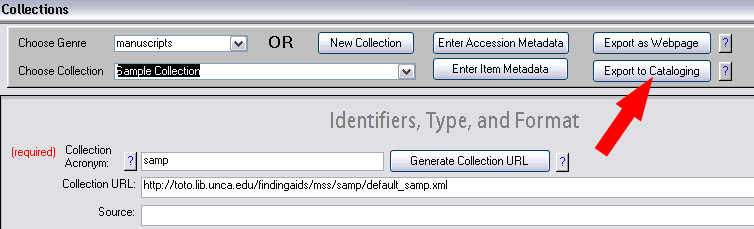
- The record will be exported to the network folder located at \\bullpup.lib.unca.edu\common\special_collections_metadata_queue. If the record is successfully exported, a confirmation message will appear.
- If necessary, notify the cataloging department that new records have been exported to the network folder.