Naming Conventions
- Assigning a Collection Acronym
- Looking up a Collection Acronym
- Generating the Collection URL from the Collection Acronym
- Generating the Collection Image URL from the Collection Image Filename
- Naming Items
- Creating and Naming Folders for the Collection
- Naming the Finding Aid File
- Naming Image and Transcript Files
Assigning a Collection Acronym
Each collection should be assigned a collection acronym. This acronym should then be used for naming all folders and all files associated with the collection. The following are recommended practices for assigning a collection acronym:
- Assign a 4-letter acronym, all lowercase, no spaces, reflecting the title of the collection. For example, a collection called "Sample Collection" might be assigned a collection acronym of "samp". The James Bennington Collection, for example, would be given "benn" as the acronym. Use the alphabetical control to assign the acronym.
- It is acceptable to assign an acronym of fewer than 4 letters, if fewer than 4 letters are sufficient to represent the collection. It is also acceptable to assign an acronym of more than 4 letters, if more than 4 letters are necessary to represent the collection.
- All else being equal, shorter acronyms are preferable to longer ones. The acronym will be used in every folder and every file in the collection. Shorter acronyms will simplify data entry and reduce the chance of errors.
- If more than 4 letters are needed to distinguish two or more collections, add as many additional letters as are needed to the acronym to make it unique. For example, if a collection called the "George Brown Collection" is assigned a collection acronym of "brow", and then a collection called the "John Brown Collection" is acquired, the latter might be assigned a collection acronym of "browj". If a collection called the "Julia Brown Collection" is then acquired, it might be assigned a collection acronym of "browju".
- The collection acronym can contain letters from a single word in the collection title or from multiple words. For example, a collection called the "Asheville Garden Club" might be assigned an acronym of "ashe" or, alternatively, "agc". The alphabetical control "Asheville", or "ashe" assignment, is preferred.
- Every collection acronym need not adhere to exactly the same pattern. What matters is that the collection acronym is used consistently within a collection.
The collection acronym is assigned on the main
Collections form in Microsoft Access. If you try to
assign an acronym that has already been assigned to
another collection in the database, a warning message
will appear and you will be asked to choose a different
acronym.

Looking Up a Collection Acronym
You can view a list of current collection acronyms in the Microsoft Access database. This is useful for looking up the acronym for a specific collection.
NOTE: The acronyms list is automatically generated. As soon as you enter the collection acronym in the Collections form of the database, it will also appear in the acronyms list. You do not need to separately enter the collection acronym in the acronyms list.
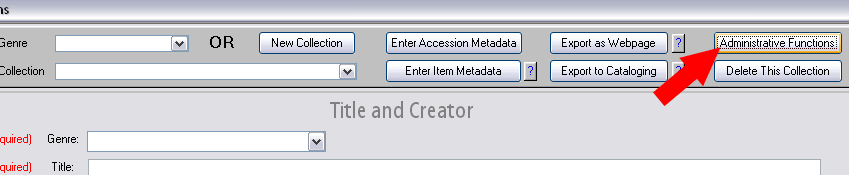
- On the main Collections form, click "Administrative
Functions" on the gray toolbar.
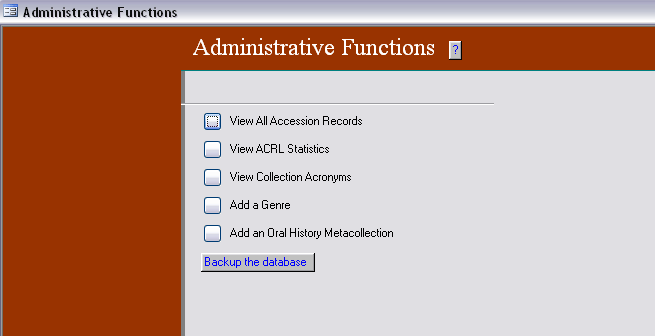
- Click "View Collection Acronyms".
Generating the Collection URL from the Collection Acronym
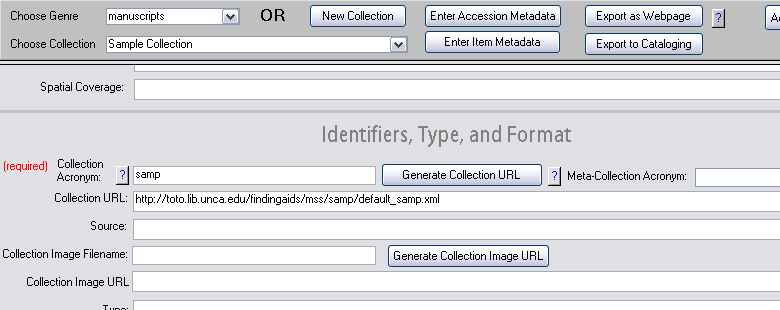
A collection URL that follows correct naming conventions can be automatically generated using the "Generate Collection URL" button in the Collections form of the database.IMPORTANT: The "Generate Collection URL" button should only be used for collections for which you intend to create an XML finding aid by exporting the collection record from the database. The "Generate Collection URL" button should not be used for legacy collections that have HTML finding aids. The button creates a collection URL that follows current naming conventions and uses an XML file extension. However, legacy collections often do not adhere to current naming conventions, and they have HTML instead of XML file extensions. Therefore the collection URL will be incorrect if you use the button to generate it automatically. Instead, for legacy collections that have HTML finding aids, simply copy the URL from the existing web page and paste it into the Collection URL field of the database.
For new collections, follow these steps.
- After entering the genre and the collection acronym
in the Collections form in Microsoft Access, click
"Generate Collection URL."
- When you click the "Export as Webpage" button to
export an XML finding aid, the exported file is saved to
the location indicated by the Collection URL. In order
for the export procedure to succeed, all of the folders
indicated in the Collection URL must already exist
before you export the XML finding aid. Studying the collection URL can serve as a reminder
of what folder(s), if any, you should create and where you should
create them. The above example
is for a manuscript collection called "Sample
Collection" with a collection acronym of "samp". The
collection URL generated in this example is http://toto.lib.unca.edu/findingaids/mss/samp/default_samp.xml.
This URL indicates where the export procedure will
attempt to store the XML finding aid:
- http://toto.lib.unca.edu/findingaids/mss/samp/default_samp.xml - on the toto.lib.unca.edu server;
- http://toto.lib.unca.edu/findingaids/mss/samp/default_samp.xml - in the "findingaids" folder, where all finding aids reside;
- http://toto.lib.unca.edu/findingaids/mss/samp/default_samp.xml - in the "mss" folder, where all manuscript finding aids reside;
- http://toto.lib.unca.edu/findingaids/mss/samp/default_samp.xml - in a collection folder named using the collection acronym—this is the folder you will likely need to create;
- http://toto.lib.unca.edu/findingaids/mss/samp/default_samp.xml - and the file will be named by combining "default_" plus the collection acronym plus the .xml file extension. This file need not already exist. If a file with this filename already exists (from a previous export procedure), it will be overwritten.
More information about creating collection folders is available below.
- The Collection URL is one of the most important fields in the database. Not only is it used for exporting XML finding aids, it is also used to create links to our collections in the WNCLN online catalog. Take extra care to ensure the Collection URL is accurate.
Generating the Collection Image URL from the Collection Image Filename
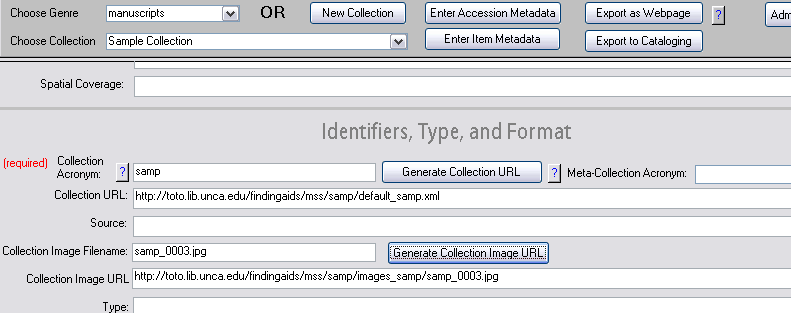
The Collection Image URL is used to specify the URL of an image that you wish to display at the top left of an XML finding aid. A collection image URL that follows correct naming conventions can be automatically generated using the "Generate Collection Image URL" button in the Collections form of the database.- After entering the genre and the collection acronym
in the Collections form in Microsoft Access, enter the
filename (including file extension) of the image you
wish to use as the Collection Image. Then click
"Generate Collection Image URL".
- If the image you indicated does not already reside
in the location indicated by the Collection Image URL,
you must place it there. Studying the Collection Image URL can
show you where to place the image file. The above example
is for a manuscript collection called "Sample
Collection" with a collection acronym of "samp"
and a collection image filename of "samp_0003.jpg". The
collection image URL generated in this example is http://toto.lib.unca.edu/findingaids/mss/samp/images_samp/samp_0003.jpg.
This URL indicates where the image file "samp_0003.jpg" should be
stored:
- http://toto.lib.unca.edu/findingaids/mss/samp/images_samp/samp_0003.jpg - on the toto.lib.unca.edu server;
- http://toto.lib.unca.edu/findingaids/mss/samp/images_samp/samp_0003.jpg - in the "findingaids" folder, where all finding aids reside;
- http://toto.lib.unca.edu/findingaids/mss/samp/images_samp/samp_0003.jpg - in the "mss" folder, where all manuscript finding aids reside;
- http://toto.lib.unca.edu/findingaids/mss/samp/images_samp/samp_0003.jpg - in a collection folder named using the collection acronym;
- http://toto.lib.unca.edu/findingaids/mss/samp/images_samp/samp_0003.jpg - in the collection's images folder, named by combining "images_" plus the collection acronym;
- http://toto.lib.unca.edu/findingaids/mss/samp/images_samp/samp_0003.jpg - and the filename should be what you entered in the Collection Image Filename field.
More information about creating collection folders is available below.
- You do not have to use the "Generate Collection Image URL" button. If you know the full URL of the image you want to use as the Collection Image, you can simply enter the URL in the Collection Image URL field. This URL need not resemble the URL described above; it can point to any location on the web.
Naming Items
- Each item in a collection should be named using the collection acronym followed by a 4-digit number. A full description of the naming convention for items is available in the tutorial on entering items in the Items form.
Creating and Naming Folders for the Collection
- Collection folders for storing all of the web-viewable
content of a collection—XML finding aid, images,
and transcripts—should reside in the
appropriate genre folder (for example, "photo" or "mss")
within the "findingaids" folder on the toto.lib.unca.edu
server.
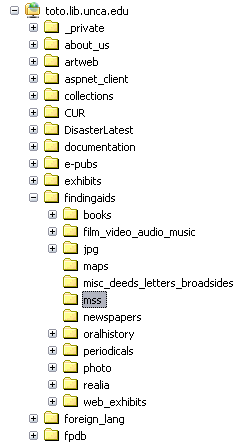
- In the appropriate genre folder, create a new
folder and name it using the collection acronym. (Oral
histories are slightly different. See step 5.) Within
the newly created folder, create a folder for images (if
applicable) and a folder for transcripts (if
applicable). Name the images folder by combining
"images_" and the collection acronym, and name the
transcripts folder by combining "transcripts_" and the
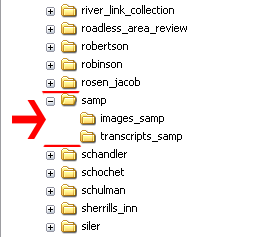
collection acronym. For example, for a manuscript
collection named "Sample Collection" with a collection
acronym of "samp", create a folder called "samp" in the
"mss" folder. Inside the "samp" folder, create a folder
called "images_samp" and a folder called "transcripts_samp".
IMPORTANT: Double-check the spelling of the images and transcripts folder (both words should be plural). Misspellings will cause broken links on the XML finding aid!
- The XML finding aid should be placed directly in
the collection folder ("samp" in this example). All
images should be placed directly in
the images folder ("images_samp" in this example).
All transcripts should be placed directly
in the transcripts folder ("transcripts_samp" in this
example). Do not place images or transcripts in
additional subfolders within the images or transcripts
folders, as the XML finding aid will not know to look
for them there.
- Folders can be created using Microsoft Frontpage or My Network Places.
- ORAL HISTORIES ONLY: Unlike other genres, folders
for oral history finding aids should not be placed
directly in the "oralhistory" folder. Instead, place the
folder within the broad meta-collection folder which
the particular oral history belongs to. For example, if
an oral history called "Sample Oral History" with a
collection acronym of "samp" is part of the CDE (Center
for Diversity Education) meta-collection of oral histories,
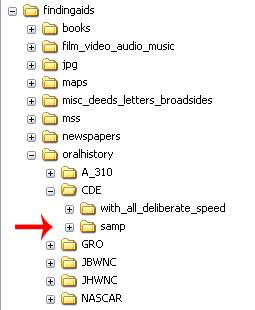
create a folder called "samp" and place it in the "CDE"
folder of the "oralhistory" folder. All other aspects of
naming and creating folders for the oral history are the
same as described above.
Naming the Finding Aid File
- The XML finding aid for every collection should follow a standardized naming convention, consisting of "default_" and the collection acronym, plus the .xml file extension. For example, for a collection called "Sample Collection" with a collection acronym of "samp", the XML finding aid would be named "default_samp.xml".
- When you use the "Generate Collection URL" button in Microsoft Access, the correct filename will automatically be generated based on the collection acronym you have entered for the collection.
Naming Image and Transcript Files
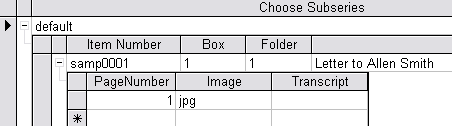
- Image and transcript files should follow a
standardized naming convention, consisting of the item
number, followed by an underscore, followed by the page
number, followed by the file extension. Consider
the following example record from the Items form of the
database. The record indicates that page 1 of the
item numbered "samp0001" has a jpeg image available for
viewing on the web. When you create an XML finding aid
for the collection, a link to the image will be
automatically generated using the information shown
below. For the link to work, there must actually be a
jpeg image file residing where the XML finding aid
expects to find it, and having the name the XML finding
aid expects to find.
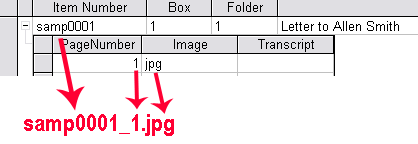
- If you entered the above information into the Items
form of the database, you should create a jpeg image
named "samp0001_1.jpg", as shown in the left-hand
graphic below. Notice how the information recorded in
the database dictates the correct file name. If you
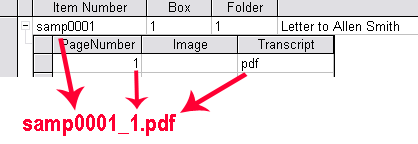
entered a PDF file type in the "Transcript" box (as in the
right-hand graphic below), you should create a PDF transcript
named "samp0001_1.pdf". If you entered file
type information in both the "Image"
and "Transcript" boxes, you should create both
an image file and a transcript file, with the file types
you indicated. In this case, the two files will share the same file
name; only their file extensions will differ.
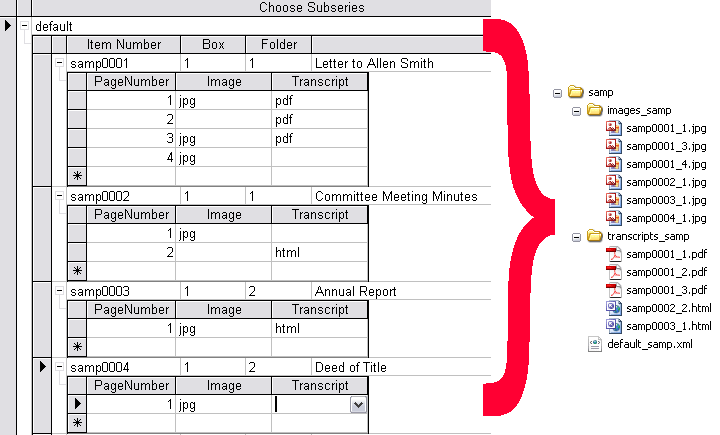
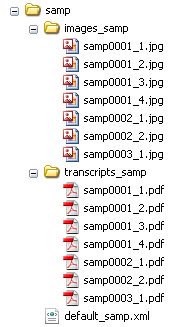
- A fuller example is shown below, using a
sample collection with collection acronym "samp". If you
entered item and page information as shown on the left,
you would need to create the images and transcripts shown on the right, naming them as shown and
placing them in the "images_samp" or "transcripts_samp"
folder for the collection. Study the example carefully
to make sure you understand the naming conventions.