

Replacing HTML Finding Aids with XML Finding Aids
Sometimes you may wish to replace an old HTML finding aid with a new XML finding aid exported from the database.
- Replacing HTML finding aids containing no item-level information
- Replacing HTML finding aids containing item-level information
Replacing HTML finding aids containing no item-level information
If the HTML finding aid includes no item-level information, all the information for the collection should already be in the database. Open the Collections form of the database and locate the collection.
-
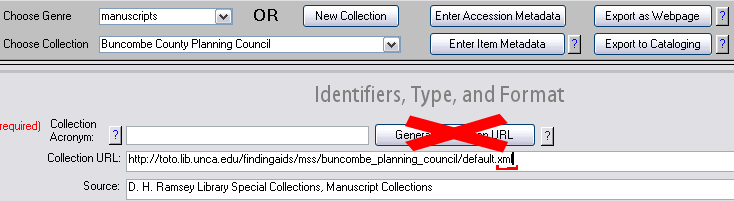
In the Collection URL field, change the file extension from "htm" or "html" to "xml". Do not use the "Generate Collection URL" button, since the folders for the collection already exist and may not adhere to current naming conventions.
-
Click "Export as Webpage" in the gray toolbar to create the XML finding aid. This will not overwrite the old HTML finding aid but will place the new XML finding aid beside it.
-
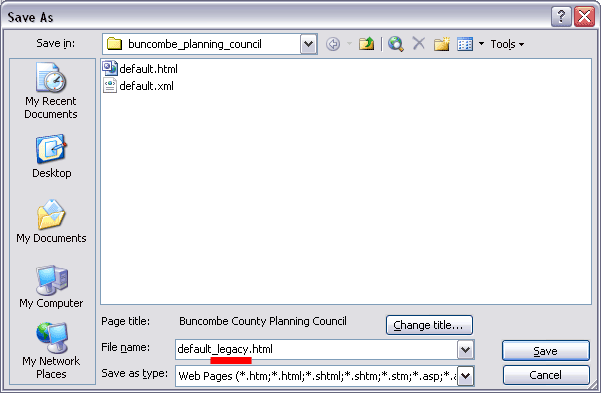
Open Microsoft Frontpage and browse to the folder for the collection. Open the old HTML finding aid. Save a copy of the old finding aid by clicking File > Save As. Add the word "_legacy" to the filename and click OK.
-
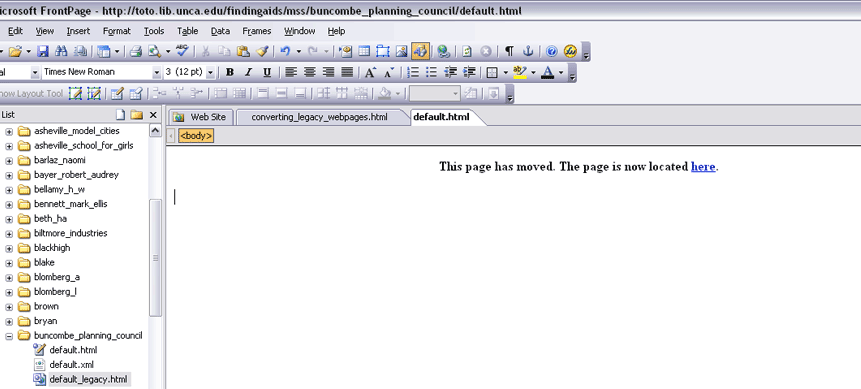
Reopen the original finding aid (not the "legacy" copy you just created). Create a link from the old HTML finding aid to the new XML finding aid, in case users come to the old page. To do so, delete the contents of the old HTML finding aid and insert a "redirect" message linking the user to the new XML finding aid, as shown below.
-
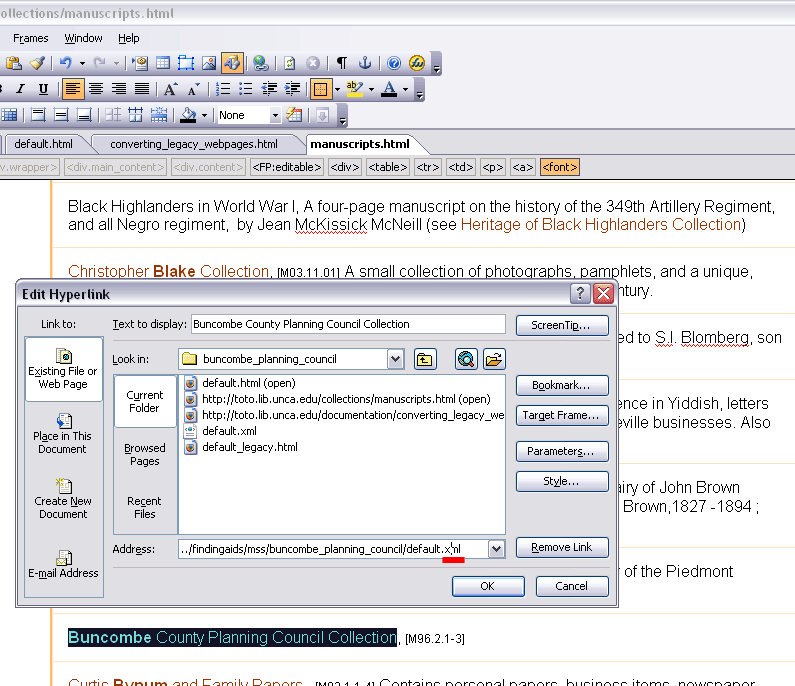
Browse to and open the collection list that the collection belongs to. Modify the hyperlink to point to the XML finding aid.
-
Update any additional hyperlinks you are aware of that point to the old HTML finding aid. If there are additional hyperlinks that you forget to update, the link on the old HTML finding aid will redirect users to the new XML finding aid.
top
Replacing HTML finding aids containing item-level information
- To replace an HTML finding aid containing item-level information with an XML finding aid, there are two options.
- The first option is to enter the item-level information into the database. Learn how to enter item-level information into the database. Once you have entered the item-level information, follow the steps above, beginning with step 2, to replace the old HTML finding aid with a new XML finding aid. Item-level information will be included in the XML finding aid.
-
The second option is to link from the new XML finding aid to the item-level
information. To do so, copy the item-level information from the old HTML
finding aid to a new HTML webpage and insert the URL of the new webpage in
the "URL of Series" field in the Collections form of the database.
Learn more about entering series in the database and
creating links to item lists. Once you have entered the Series URL(s) in
the database, follow the steps above, beginning with
step 2, to replace the old HTML finding aid with a new XML finding aid.
top